In the documentation Invite and share
Invite and share
To write together, you create an invitation code: you choose what the person can do and how long the code lasts. They come in with their name, without creating an account.
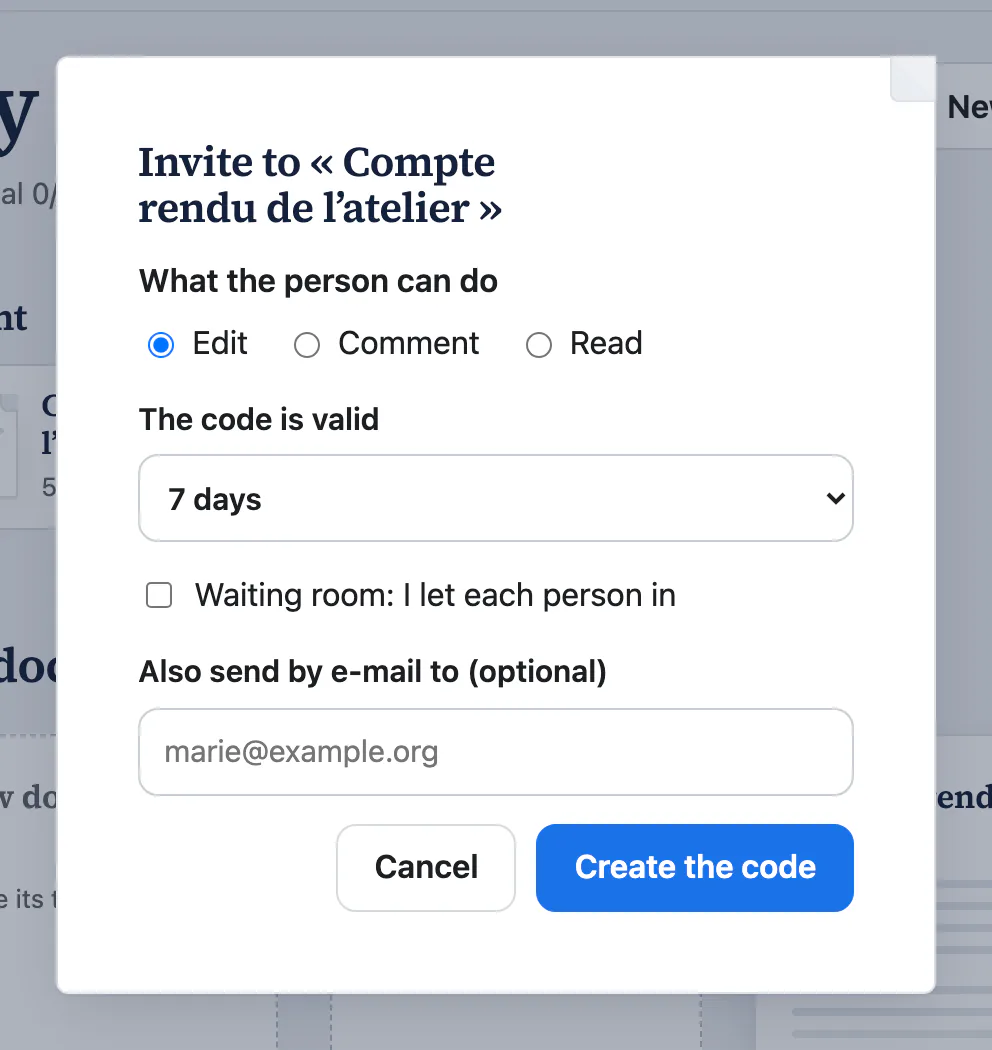
Create an invitation code
- In My documents, open the document’s ⋯ menu (or right-click it), then Invite…
- Choose what the person can do: Edit, Comment or Read.
- Choose how long the code is valid (see below).
- Create the code. Paginel shows the code and the link; Copy the link, then send it however you like. You can also give an address: Paginel sends the invitation by e-mail.
How long the code is valid
| Length | What for |
|---|---|
| For my session | A meeting, a workshop: the code stops working when your session ends. |
| 24 hours | A quick review. |
| 7 days | A week’s work. |
| Until I remove it | A team that comes back often. Remember to remove it when the work is done. |
What the guest sees
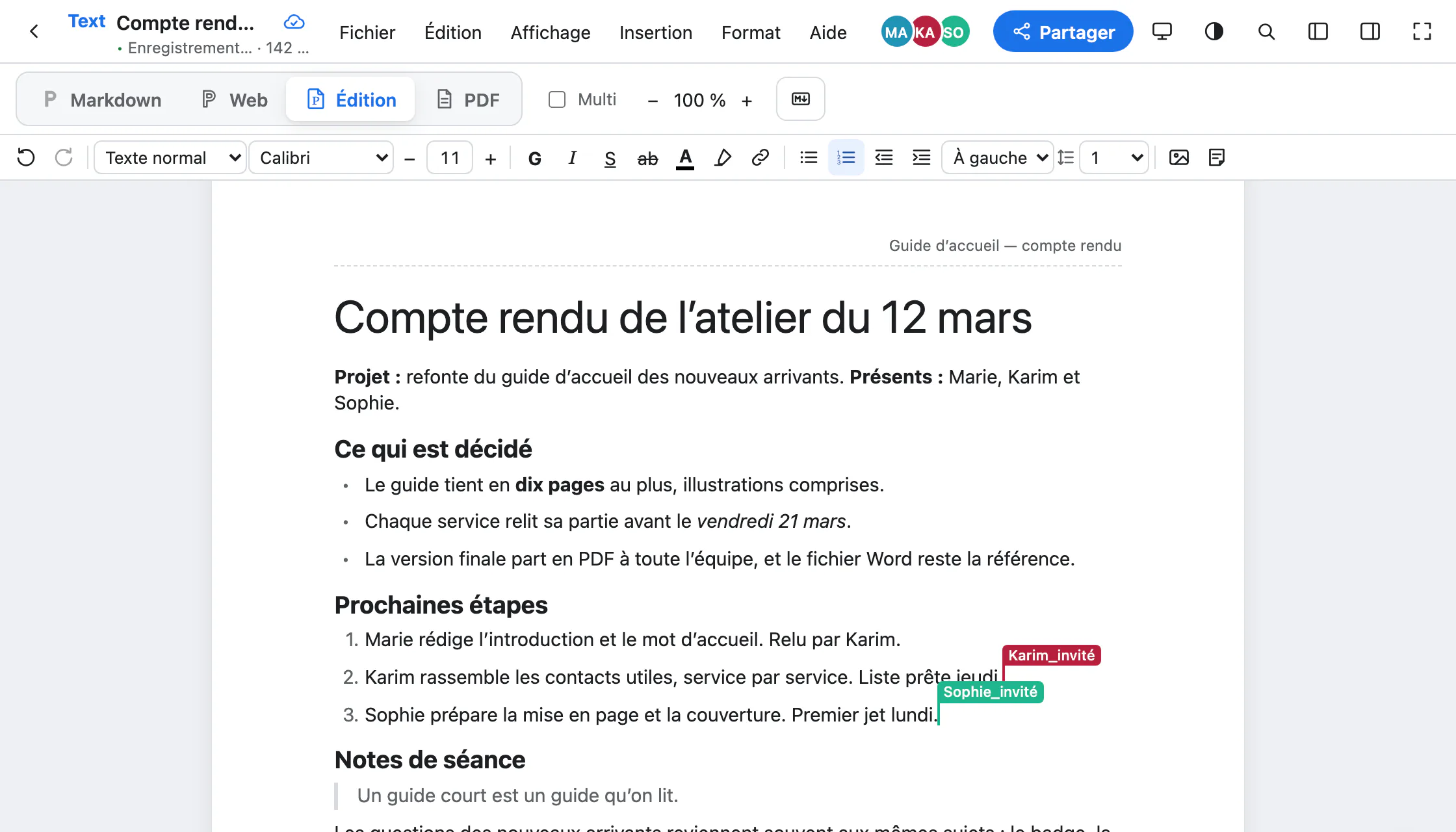
They open the link, type their name and enter the document: no account to create. The others see their cursor and their name, marked “invité” (guest).
With the Waiting room box, they wait until you let them in: My documents tells you at the top right, with Let in and Refuse.
Remove access
In My documents, the document’s ⋯ menu, Access codes…: you see each code, what it allows and who used it.
- Remove a person: they leave the document.
- Cancel this code: nobody can come in with it any more, and those who came with it lose their access too.
Share the document’s address
In My documents, Share… gives the document’s address. It never changes, and it only opens the document to people who have access.
The Link open to anyone setting decides the rest: Closed (only people invited or let in enter), Reading (anyone with the address can read) or Commenting (anyone signed in with the address can comment).
Take charge of a section
A heading and what follows it form a section. In the right-hand panel (⌘\), Sections tab, a section’s ⋯ menu offers Take charge (Prendre en charge): you become responsible for it, and the others no longer edit it without your agreement. By default, they can still comment on it.
Right-clicking a heading also offers Share the section… (Partager la section…): its link opens that part on its own, the rest folded.
What does not exist yet
- Opening a SharePoint, OneDrive or Dropbox document to share it: coming soon.
- Suggestion mode: a guest edits or comments, but does not propose changes to accept.
Going further
- How Paginel works The app, the server, and how your changes travel, without jargon.
- Get started Create an account, open a Word or Markdown file, find your documents.
- Write in Markdown The Markdown view, the useful syntax, pasting Markdown, agents.
- Take notes in the Web view A clean page without a sheet, where typed Markdown formats itself.
- Format in the Editing view Styles, font and size, images, comments, and the Word file.
- Export to PDF The PDF view, downloading, PDF/A for archiving.
- Data management Where your documents are, who can read them, how to take them back and erase them.
- Help The questions we are asked most.