In the documentation Get started
Get started with Paginel
An account, a document, and you are writing. This guide shows the first steps: create your account, open an existing file, find your documents.
Create your account
- On paginel.com, choose Create an account.
- Continue with your Microsoft, Google or GitHub account, or just give your e-mail address and your name: Paginel sends you a link, valid for 15 minutes. A password is optional.
- Open the link on the same device. Your account is ready.
The name you give is the one the people you write with will see. During the beta, the account is free: 10 personal documents and 5 shared documents.
Create a document
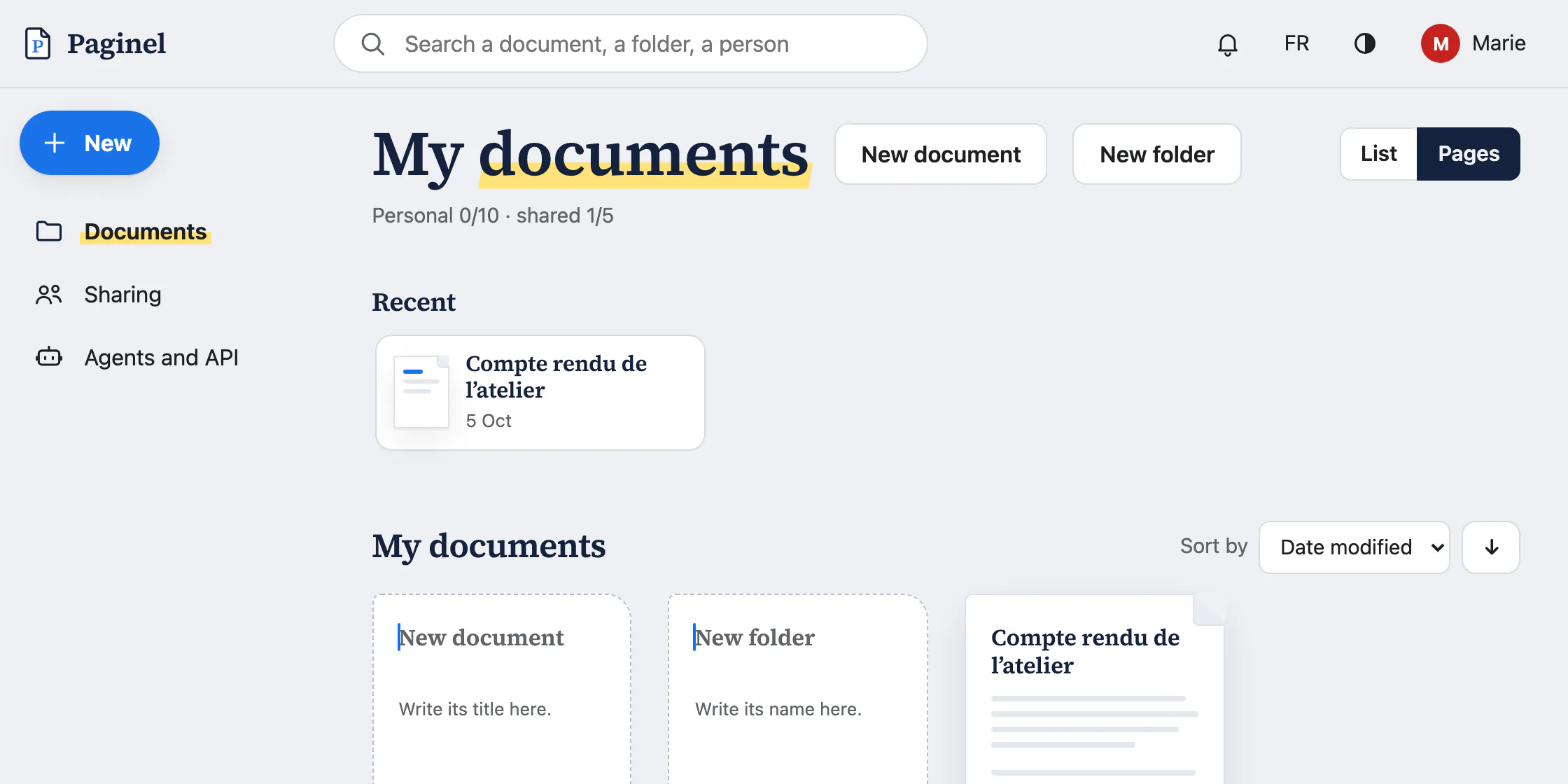
The first time you sign in, Paginel offers “Your first document”: type its title, then Create and open. Afterwards, in My documents, type the title on the dashed blank page.
The document opens empty, with templates to start from: Report, Meeting minutes, Business memo, Letter, Landscape page, or your own Word template (.dotx).
Open a Word or Markdown file
- Create a document and leave it empty.
- Choose File › Open a Word or Markdown file… (on screen: Fichier › Ouvrir un fichier Word ou Markdown…; ⌘O on a Mac, Ctrl O elsewhere), or drag the file onto the page.
- The file’s content fills the document: headings, lists, images, headers and footers.
Write
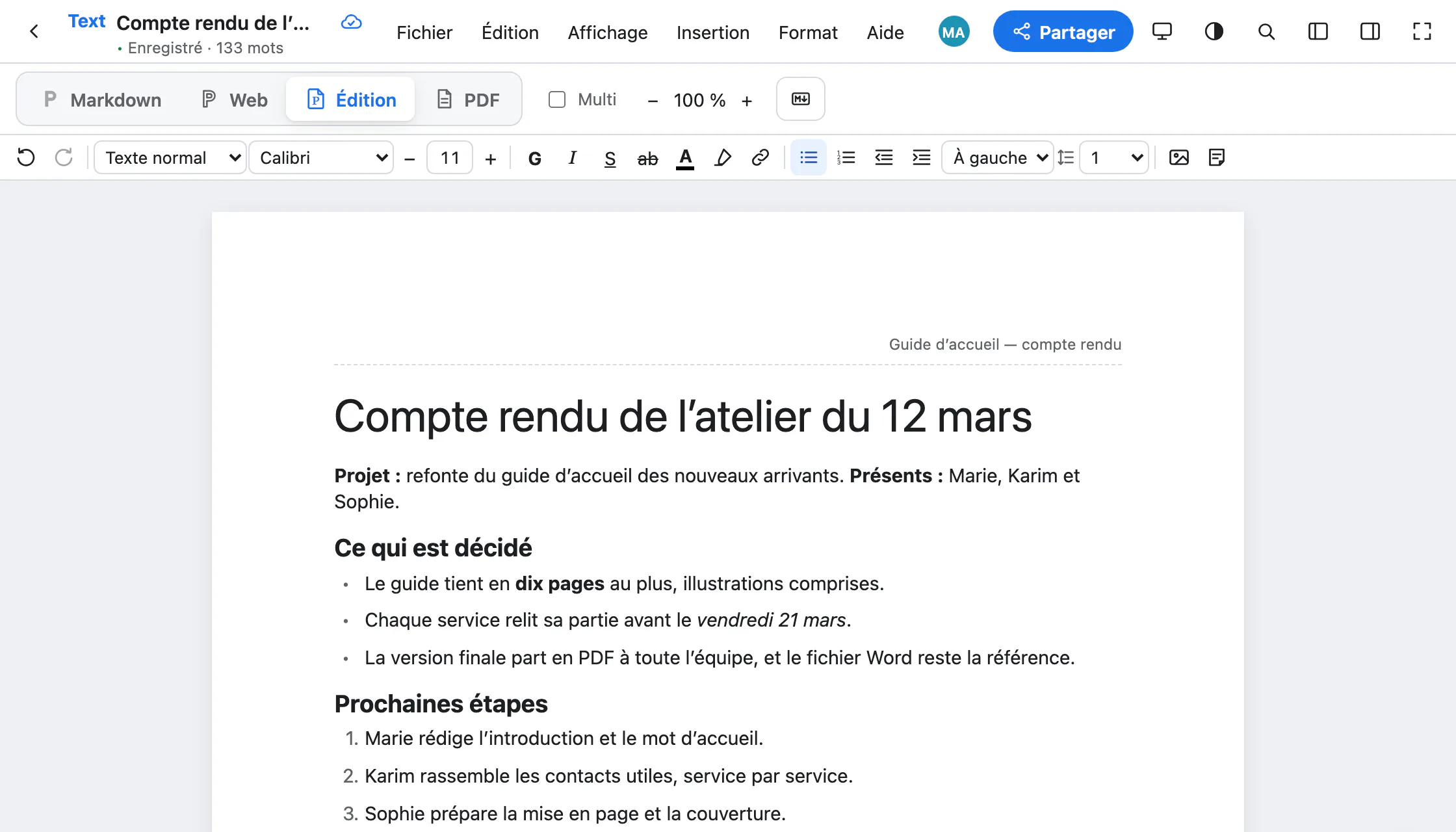
Paginel saves on its own: under the document’s name, “Enregistré” (saved) appears as soon as the server has your change. There is nothing to do before closing.
Four buttons at the top change how you see the same document: Markdown, Web, Editing (Édition) and PDF. The text stays the same; only the screen changes.
Find your documents
- My documents holds them all, with the recent ones first and a search at the top of the page.
- From a document, the ← arrow to the left of its name takes you back to My documents.
- Sharing gathers the invitation codes you have given: who came, who is waiting.
The desktop app, if you want it
Everything works in the browser. If you prefer to work on your computer, the desktop app (macOS, Windows, Linux) opens your .docx and Markdown files, even offline, and saves them into the original file (⌘S). It is free with an account: see Download.
Going further
- How Paginel works The app, the server, and how your changes travel, without jargon.
- Invite and share Invite with a link or a code, choose how long it lasts, remove access.
- Write in Markdown The Markdown view, the useful syntax, pasting Markdown, agents.
- Take notes in the Web view A clean page without a sheet, where typed Markdown formats itself.
- Format in the Editing view Styles, font and size, images, comments, and the Word file.
- Export to PDF The PDF view, downloading, PDF/A for archiving.
- Data management Where your documents are, who can read them, how to take them back and erase them.
- Help The questions we are asked most.