In the documentation Export to PDF
Export to PDF
The PDF view shows the exact pages of the PDF: same lines, same page breaks. You check the document there before sending it, and download it in one click.
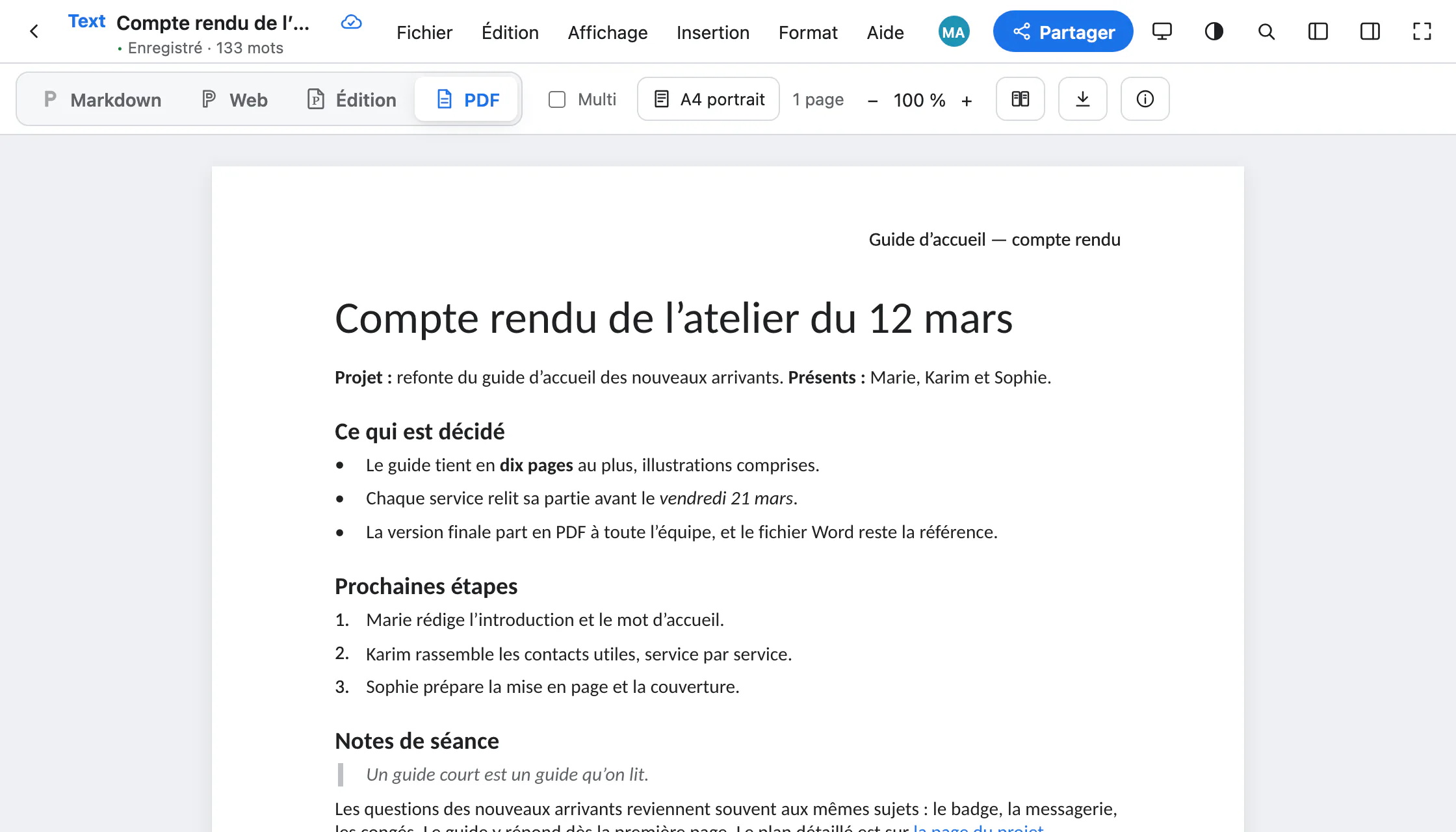
The PDF view
The PDF button at the top, or ⌥⇧⌘3. The pages are laid out by the same engine as the PDF file: what you see is what will be printed.
Nothing is edited there: a key typed on the page reminds you to write in the Editing or Web view. You can select and copy text there, and add a comment.
Check before sending
- A4 portrait (or the document’s size) opens the page setup: margins, size, orientation.
- Compare with the PDF shows the real PDF file next to the pages, at the same scale.
- Adjust printing tells you where to fix what is not right: page setup, the Editing view, headers.
- If a font was replaced or an image is missing, a discreet warning appears in the same bar.
Download the PDF
- In the PDF view, the Download the PDF button; or, from any view, File › Download › PDF.
- The file is named after the document. Fonts are embedded, links stay clickable, and each heading becomes a bookmark.
File › Print or save as PDF… (⌘P) opens the same PDF in a tab, ready to print.
For archiving: PDF/A
File › Download › PDF/A, for archiving. Paginel produces PDF/A-2a when the document allows it, otherwise PDF/A-2b, and tells you the level reached, or why it is not possible.
A PDF everyone can read
The PDF is tagged: headings, lists, tables, notes and links are announced to screen readers, in reading order. Its title, author and language are set in File › Document properties.
Going further
- How Paginel works The app, the server, and how your changes travel, without jargon.
- Get started Create an account, open a Word or Markdown file, find your documents.
- Invite and share Invite with a link or a code, choose how long it lasts, remove access.
- Write in Markdown The Markdown view, the useful syntax, pasting Markdown, agents.
- Take notes in the Web view A clean page without a sheet, where typed Markdown formats itself.
- Format in the Editing view Styles, font and size, images, comments, and the Word file.
- Data management Where your documents are, who can read them, how to take them back and erase them.
- Help The questions we are asked most.