In the documentation Take notes in the Web view
Web
Take notes in the Web view
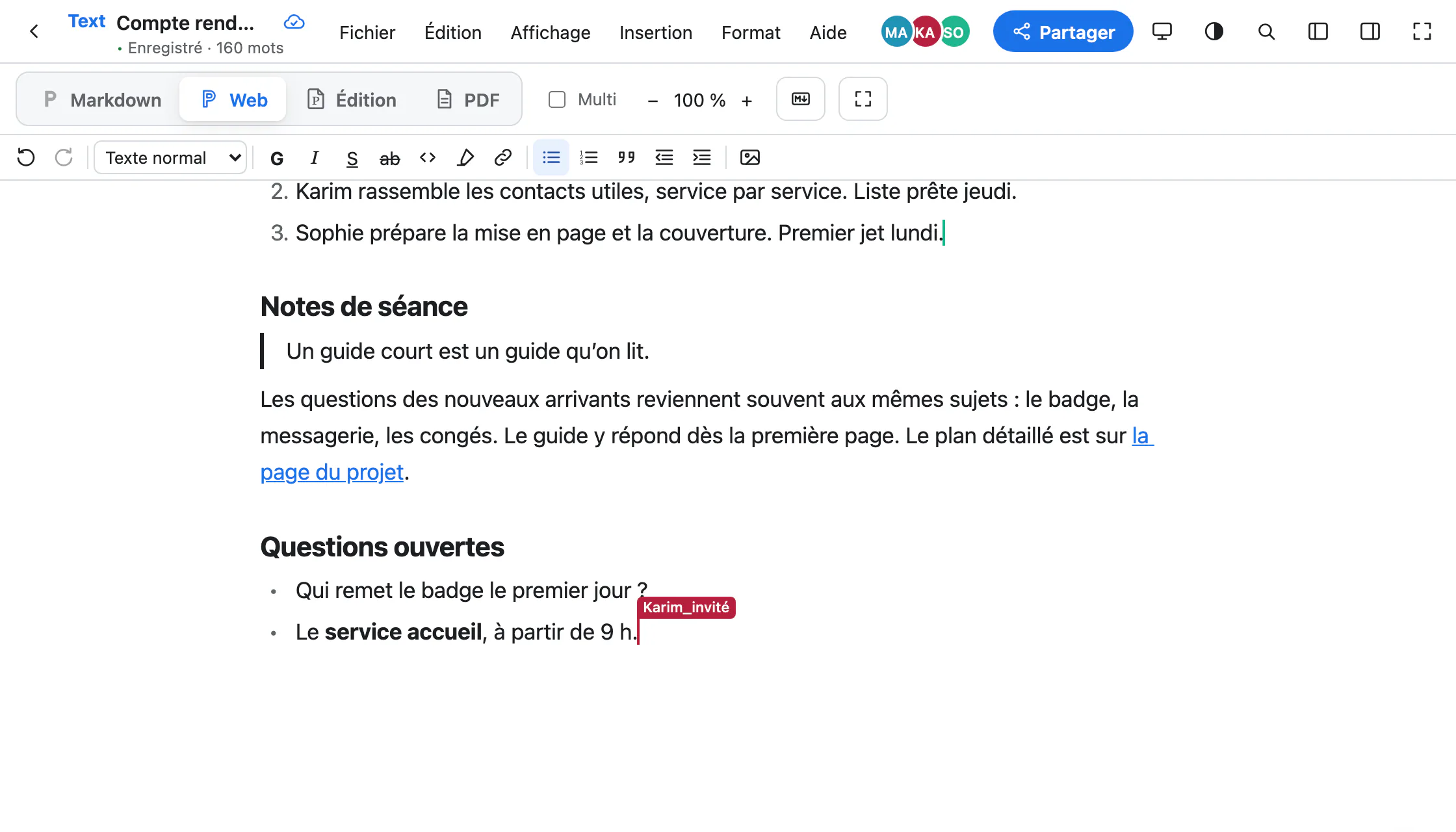
The Web view shows the document as a clean web page: no sheet, no margins, one column of text. It is the view for meeting notes, manuals and shared drafts.
Open the Web view
The Web button at the top, or ⌥⇧⌘4. It is the same document as in the Editing view: what you write here ends up in the Word file and in the PDF.
The menus follow: no paper, no fonts, no headers here. Text, headings, lists, links, images and comments stay at hand.
Typed Markdown formats itself
No need to look for a button: type as in a notes file, and the formatting follows.
Open questionsMarie
Who hands out the badge on day one?
The front desk, from 9 am.Karim
##at the start of a line: a heading.-or1.: a list.**word**: bold;*word*: italic.>: a quote.
Together
Each person has their own cursor, in their colour, with their name; the badges at the top right say who is there. Clicking a badge takes you to that person’s cursor, or lets you follow it.
To invite someone, see Invite and share.
Stay focused
- View › Focus mode (⇧⌘F) hides everything that is not the text.
- On a phone, the document opens for reading: tap Modifier (edit) to write.
- The browser keeps a copy of open documents: without a network, you keep writing, and everything comes together when the connection returns.
Going further
- How Paginel works The app, the server, and how your changes travel, without jargon.
- Get started Create an account, open a Word or Markdown file, find your documents.
- Invite and share Invite with a link or a code, choose how long it lasts, remove access.
- Write in Markdown The Markdown view, the useful syntax, pasting Markdown, agents.
- Format in the Editing view Styles, font and size, images, comments, and the Word file.
- Export to PDF The PDF view, downloading, PDF/A for archiving.
- Data management Where your documents are, who can read them, how to take them back and erase them.
- Help The questions we are asked most.